
Once a team gets comfortable using Copilot inside Word and Outlook, the next question almost always comes up: can it actually connect with our CRM, internal databases, or the ticketing systems we already rely on every day? The answer is yes, and understanding how to integrate Microsoft Copilot with existing business systems is becoming an important step for organizations looking to improve productivity, automate repetitive tasks, and make better use of their data.
This integrate Microsoft Copilot guide explains exactly how that connection is built, starting with simple no-code options through connectors and extending to advanced custom integrations using APIs and development tools. Whether you are exploring Copilot for a small workflow or planning a larger enterprise deployment, understanding the available integration approaches helps you choose the right path while maintaining security and control.
If you have not yet explored what Microsoft Copilot actually is and how the basic version works, the Microsoft Copilot foundational guide covers the core concepts this article builds on, including how Copilot assists users and where its capabilities fit within modern workplace workflows.
What Integrate Microsoft Copilot Actually Means
Integration is the difference between Copilot answering a question based only on its existing capabilities and Copilot providing answers using your organization’s actual business data. When you integrate Microsoft Copilot with existing systems, you allow it to securely access relevant information from the tools and platforms your teams already use, creating more accurate and context-aware responses.
That business data usually exists in three main areas: the Microsoft 365 applications most organizations work with every day, such as Word, Excel, PowerPoint, Outlook, and Teams; separate business platforms such as CRM systems, ERP solutions, customer databases, or internal applications; and automation platforms like Power Automate that help connect different services and workflows together.
The purpose of Integrate Microsoft Copilot is not simply to add another AI tool into your technology stack. It is about creating a connection between AI assistance and the information your business already depends on. With the right integration approach, Copilot can help summarize customer interactions, analyze reports, find relevant documents, and support decision-making using trusted internal data.
Getting Copilot to securely reach these systems is what transforms it from a basic writing assistant into a powerful workplace AI solution. Instead of providing generic answers, it can respond to questions like “What happened with this account last quarter?” by analyzing real business information, identifying patterns, and presenting useful insights based on your organization’s data.
How Copilot Connects to Your Existing Systems
At a high level, the flow looks the same regardless of which system is on the other end: a person asks Copilot a question, Copilot routes that request through a connector or API, the connector retrieves the relevant data from wherever it actually lives, and Copilot turns that raw data into a readable answer.
Copilot Integration Architecture
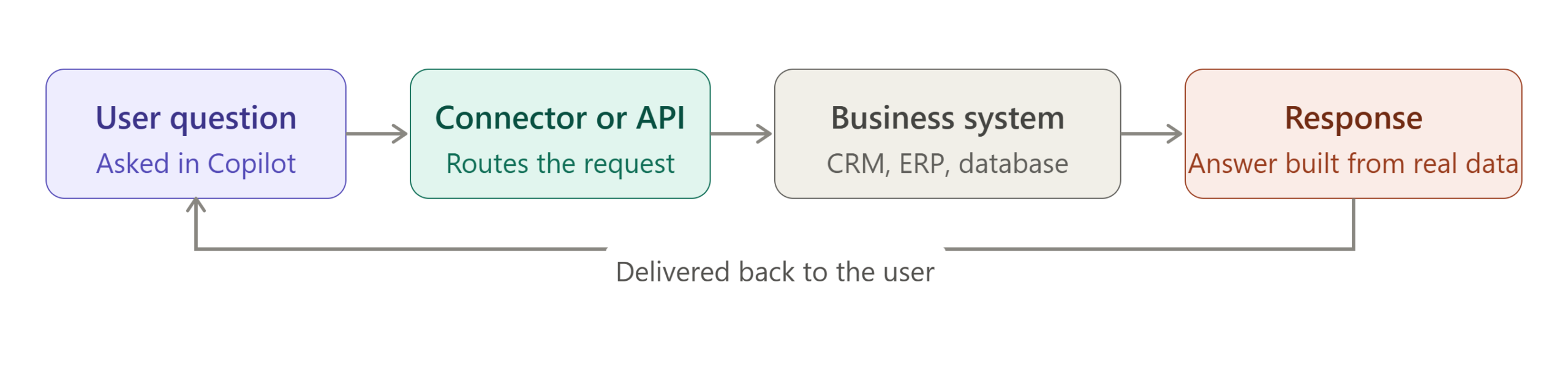
A sales manager asking “show me this month’s top customers and revenue trends” is a good example of what that looks like end-to-end. Copilot connects to the CRM through its configured connector, pulls the relevant account and opportunity records, analyzes the trend across the month, and returns a summary, all without the manager opening the CRM directly or building a report by hand.
Step 1: Identify a Real Use Case First
The most successful Integrate Microsoft Copilot projects usually begin with a specific, recurring business challenge rather than a broad goal like “add AI to everything.” Before organizations integrate Microsoft Copilot into their workflows, they should first identify where AI can create the most practical value and solve a genuine productivity problem.
Common starting points include customer support ticket summarization, monthly report generation, contract or document summarization, and repetitive data lookups inside a CRM. These use cases work well because someone on the team is already performing the same task manually, often repeatedly, and can immediately recognize the improvement when Copilot helps automate part of that process.
Choosing a narrow and well-understood use case also makes it easier to measure whether the Copilot integration has delivered real results. Teams can compare the previous workflow with the new AI-assisted process, looking at improvements such as time saved, reduced manual effort, faster access to information, and better consistency in everyday tasks.
Starting small also provides valuable insights before expanding Copilot across additional departments or business systems. A focused implementation helps organizations build confidence, address security considerations, and create a stronger foundation for future AI adoption.
Step 2: Prepare Your Data Before Connecting Anything
Before you integrate Microsoft Copilot with your business systems, preparing your data should be one of the highest priorities. Skipping this step is one of the most common reasons Copilot integrations fail to deliver the expected results after launch. Even with powerful AI capabilities and reliable connectors, poor-quality data can lead to incomplete, inconsistent, or inaccurate responses.
Messy, duplicated, outdated, or inconsistently labeled information creates unreliable AI outputs. When organizations integrate Microsoft Copilot with systems such as CRMs, databases, or document repositories, the quality of the answers depends heavily on the quality of the data that Copilot can access.
Before connecting any system, review whether your data is properly organized, identify duplicate or outdated records, and confirm that naming conventions and information structures are consistent. It is also essential to review permissions carefully so Copilot only displays information that each user is authorized to access. Strong security controls should already be established before the integration begins rather than being added later as a reaction to problems.
This stage is also the right time to define the exact scope of the first Copilot integration. Decide which data sources should be included initially and which systems can be connected in future phases. Starting with a controlled set of trusted information makes testing easier and reduces unnecessary complexity.
Data quality is just as important as data quantity. A CRM containing years of duplicate customer records, inconsistent fields, or incomplete information will produce weaker Copilot responses than a smaller but well-maintained dataset. Cleaning and organizing data before deployment helps ensure users receive accurate, useful insights.
Fixing data issues after Copilot is already live is much more difficult. Once teams begin relying on AI-generated answers, poor results can quickly affect user confidence and adoption. Preparing your data first creates a stronger foundation for a successful Microsoft Copilot integration and helps ensure the technology delivers meaningful business value.
Step 3: Choose the Right Connection Method
There are three realistic paths here, and they trade off ease of setup against how much control and customization you get.
| Method | Setup difficulty | What it’s good for |
|---|---|---|
| Prebuilt Microsoft 365 Copilot connectors | Easiest, mostly configuration, no code | Indexing standard records (accounts, contacts, cases) so Copilot can search and reference them |
| Copilot Studio + Power Platform connectors | Moderate, some configuration and testing | Custom objects, write-back actions, connecting to SharePoint, Dataverse, SQL databases, and hundreds of other prebuilt connectors |
| Custom APIs | Hardest, requires developer involvement | Fully custom applications or systems with no existing connector available |
Microsoft 365 Copilot connectors, managed through the Copilot section of the admin center, are the fastest way to get started. The Salesforce CRM connector is a good example: once deployed, it indexes accounts, contacts, opportunities, leads, and cases into the Microsoft Graph, so Copilot can search and reference them directly, all without writing a line of code. The tradeoff is that this route typically only covers a handful of standard object types.
Copilot Studio opens things up considerably. It is built specifically for creating custom copilots and agents, and its connector library includes well over a thousand prebuilt options covering everything from SharePoint and Dataverse to SQL databases and countless external applications, with no need to manage API keys or authentication code manually for most of them. This is also the path that supports custom objects and write-back actions, meaning Copilot is not just reading data but can update it too, when configured to do so.
For anything with no existing connector, a custom API integration is the fallback. A basic version of that architecture looks like: an application sends a request through an API, the API talks to Copilot, and Copilot returns a response shaped by whatever business data that API exposes. This path requires real developer time, but it is the only option for a fully bespoke internal system. Anyone building this kind of deeper connection between an AI model and outside tools will find this overview of the Model Context Protocol useful background, since it explains the emerging standard several of these connector tools are starting to build around.
For teams already comfortable with no-code automation more broadly, this Microsoft Power Automate tutorial is worth reading alongside this guide, since Power Automate’s SQL connector is frequently the actual mechanism behind a Copilot-to-database integration rather than a separate tool entirely.
Common Integration Mistakes Worth Avoiding
When organizations integrate Microsoft Copilot, a few common mistakes repeatedly appear in projects that fail to deliver the expected results. One of the biggest issues is trying to connect everything at once instead of starting with one specific system and one clearly defined use case. A phased approach makes it much easier to measure what is working, identify problems early, and improve the integration before expanding it further.
Giving an AI agent unrestricted access to an entire database is another mistake that can create both security and performance problems. Instead of providing unlimited access, organizations should use appropriate permissions, filtered views, and clearly defined data boundaries. This not only protects sensitive information but can also improve response quality because Copilot does not need to search through large amounts of irrelevant data to find useful information.
Another common challenge when teams integrate Microsoft Copilot is testing only with small, clean sample datasets. A workflow that performs well with a few hundred records may behave very differently when it processes real production data containing years of information, duplicates, incomplete records, and complex relationships.
Testing only with small, clean sample data is another common gap. According to Microsoft’s own guidance on extending Copilot Studio agents, connectors are meant to ground responses in real enterprise data sources, and a query that performs well against a hundred test records can behave very differently once it runs against production volumes. Skipping a genuine test at realistic scale before rollout is one of the more avoidable ways an otherwise well planned integration disappoints everyone once it goes live.
Skipping proper performance, security, and data validation testing is one of the most avoidable reasons a well-planned Microsoft Copilot integration disappoints users after launch. Taking time to test thoroughly, define access boundaries, and expand gradually helps organizations create a more reliable and effective AI-powered workflow.v
Real-World Example: Copilot Connected to a CRM
Before organizations integrate Microsoft Copilot with a CRM system, accessing customer information often requires sales teams to open the CRM platform, search through multiple records, switch between different tabs, and manually piece together a customer’s history. While the information exists, finding and understanding it can take valuable time that could be spent on customer engagement and decision-making.
After connecting Copilot to the CRM, the same process becomes much simpler. Instead of manually searching through multiple screens, a salesperson can ask a natural language question such as, “Summarize this customer’s previous interactions,” and Copilot can retrieve relevant information from the connected system and provide a clear overview within seconds.
A Microsoft Copilot integration like this can bring together details such as previous conversations, support requests, sales activities, account updates, and important customer notes into one easy-to-understand summary. This helps teams quickly understand customer history without spending time manually gathering information.
The time savings may seem small when looking at a single request, but the impact becomes significant when multiplied across an entire sales team performing these tasks dozens of times each week. By reducing repetitive searches and improving access to business information, integrate Microsoft Copilot with CRM platforms can help teams work more efficiently while making faster, data-informed decisions.
Real-World Example: Copilot for Software Testing Workflows
One of the most valuable but still underused applications of Microsoft Copilot integration is improving software testing workflows. When teams integrate Microsoft Copilot into their testing processes, AI can help bridge the gap between requirements, test planning, execution, and reporting, reducing repetitive manual work while allowing testers to focus on higher-value activities.
A Copilot integration designed around a testing workflow can take a written business requirement, analyze the expected behavior, generate an initial set of test scenarios, and support existing test execution processes. Once testing is completed, Copilot can also help summarize test results, identify patterns in defects, and create clearer reports for development and business teams.
For example, Priya, a QA lead at a fintech company in Charlotte, connected Copilot with her team’s requirements documentation and test management platform as a pilot project. Previously, converting a new requirement into a complete set of test cases could take a tester most of a working day. With Copilot assistance, the process now begins with an AI-generated first draft that the tester reviews, improves, and adapts based on real testing knowledge rather than creating everything from the beginning.
The biggest improvements became visible during regression-heavy sprints, where the challenge was often not executing tests but preparing and maintaining large volumes of test cases. By integrate Microsoft Copilot into the testing workflow, the team reduced repetitive documentation effort, accelerated test preparation, and allowed testers to spend more time on exploratory testing, risk analysis, and improving overall software quality.
This example shows that Copilot integration is not about replacing testers; it is about giving quality teams an intelligent assistant that helps them work faster, improve coverage, and make better use of their technical expertise.
Security and Governance Considerations
None of this is worth doing carelessly. A Copilot agent that can see more data than a given user should have access to is a real risk, not a hypothetical one, so permissions need to mirror existing access controls rather than being treated as a separate system to configure later. Mapping a CRM’s existing security roles directly onto whatever access Copilot is granted, rather than giving an agent broad, unrestricted access to an entire database, is the standard practice worth following here.
Data governance matters just as much before launch as it does after deployment. When you integrate Microsoft Copilot into your organization, it’s important to decide upfront which data sources are in scope and which should remain off-limits. Clear governance from the beginning helps reduce security risks and ensures the AI only accesses information it is authorized to use.
Maintaining a detailed audit trail is equally important. Track what the AI agent has accessed, what actions it has taken, and any changes it has made. This level of visibility makes troubleshooting easier and supports compliance with internal policies and regulatory requirements.
Testing should also be carried out with realistic data volumes rather than small sample datasets. A workflow that performs well with a hundred test records may behave very differently when processing hundreds of thousands of records in a production environment. Thorough performance testing helps identify bottlenecks before they affect users.
Finally, review the compliance requirements that apply to your industry before you integrate Microsoft Copilot with business systems. Organizations in sectors such as healthcare, finance, and government often have strict data handling regulations, and not every connector or integration method manages regulated data in the same way.
For a broader understanding of the potential challenges involved in adopting AI, read our guide on the challenges and risks of AI, which explores many of these governance, security, and compliance considerations in greater detail.
Final Thoughts
To integrate Microsoft Copilot successfully into an existing system, the focus should not be only on the AI itself. The real challenge is deciding which business data should be accessible, how that data will be connected, and what security boundaries need to be established before deployment.
Choosing the right connection method depends on the level of control, flexibility, and governance your organization requires. A well-planned integration ensures Copilot can provide useful assistance while keeping sensitive business information protected.
Starting with one narrow and clearly defined use case is usually the best approach. Whether it is a CRM data lookup, an internal knowledge search, or an AI-assisted testing workflow, a focused implementation often delivers better results than attempting to connect every system at once.
For anyone new to connecting AI tools with everyday business workflows, this AI automation setup guide provides additional groundwork. It covers similar planning, integration, and testing principles from a tool-agnostic perspective.
Explore more on AI Learning Hub Blogs Subscribe to AI Pathway Lab for more AI Guides and tutorials. Explore AI Tools & News
Explore 5 AI tools to save time and earn money- Honest Results, No Sponsorship covers several others besides. 12 Best AI Chatbots in 2026: ChatGPT, Claude, Gemini & More Compared,
AI Tool Comparison: ChatGPT vs Claude vs Gemini vs Copilot – Pros, Cons & Best Uses
Frequently Asked Questions
Do I need to know how to code to integrate Microsoft Copilot with a CRM or database?
Not always. Prebuilt Microsoft 365 Copilot connectors and most Copilot Studio connectors are built for configuration rather than custom coding. A fully custom API integration, for a system with no existing connector, does require developer involvement.
What is the difference between a Microsoft 365 Copilot connector and a Copilot Studio connector?
A Microsoft 365 Copilot connector indexes data from a system like Salesforce so Copilot can search and reference it directly, but usually only covers standard object types. Copilot Studio connectors offer far broader coverage, including custom objects and write-back actions, through a much larger connector library.
Can Copilot connect to an on-premises database that is not in the Microsoft cloud?
Yes, using Power Automate’s SQL connector alongside an on-premises data gateway, though this adds an extra piece of infrastructure to maintain and comes with query time limits worth planning around. This route is common for businesses with critical data still sitting in an on-premises SQL server.
How do I make sure Copilot does not expose data a user should not see?
Copilot should be configured to respect the same permission structure already in place in the source system, rather than being granted broad access separately. Mapping existing security roles directly onto the integration, and testing with realistic access scenarios, is the standard way to avoid this problem.
Is integrate Microsoft Copilot worth it for a small team, or only large enterprises?
A small team with one clear, painful, repetitive task, such as CRM lookups or ticket summarization, can benefit from a narrow integration without needing enterprise scale. Starting with a single well defined use case rather than a broad rollout tends to work better regardless of company size.