Table of Contents
If you use Word, Excel, Outlook, or Teams and you have noticed a little sparkle icon showing up in the corner of your screen lately, that is Microsoft Copilot, and it is probably not going away anytime soon. Microsoft has built it into nearly every corner of Microsoft 365, and depending on your plan, it is either already sitting there waiting to help or one setting away from being turned on. This guide walks through what Copilot actually is, why the naming around it is more confusing than it needs to be, what it costs, and where it genuinely helps versus where the hype outpaces the reality.
What Is Microsoft Copilot, Really
At its core, Copilot is Microsoft’s AI assistant, built into the Microsoft 365 apps most people already use every day. It writes drafts in Word, builds formulas and summarizes data in Excel, puts together first drafts of presentations in PowerPoint, helps triage and reply to email in Outlook, and catches people up on meetings they missed in Teams.
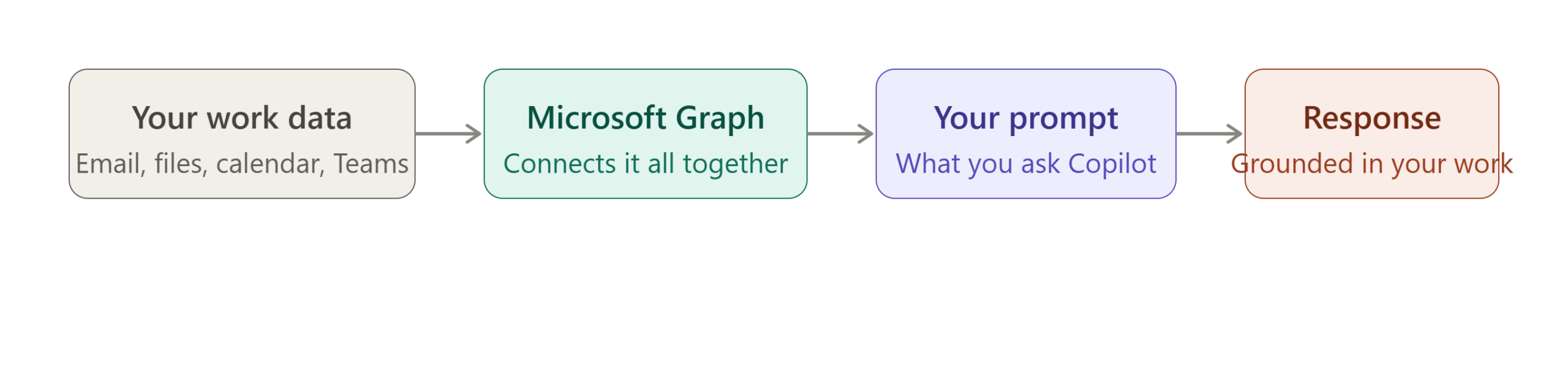
The part that actually makes it useful, rather than just another chatbot glued onto an app, is that a properly licensed version of Copilot can see your own work. It can look at your recent emails, the documents sitting in your OneDrive or SharePoint, your calendar, and your Teams conversations, and use all of that as context. Ask it to draft a proposal and it is not writing a generic template; it is pulling in details from your last few emails with that client and whatever similar proposal your team wrote six months ago. That grounding in your actual data, through what Microsoft calls the Microsoft Graph, is really the whole pitch.
How Copilot Grounding Works
The Confusing Part: Copilot Is Not Just One Product
Here is where things get messy, and it is worth saying plainly: Microsoft has used the word Copilot for several different products at several different price points, and the overlap in naming trips people up constantly.
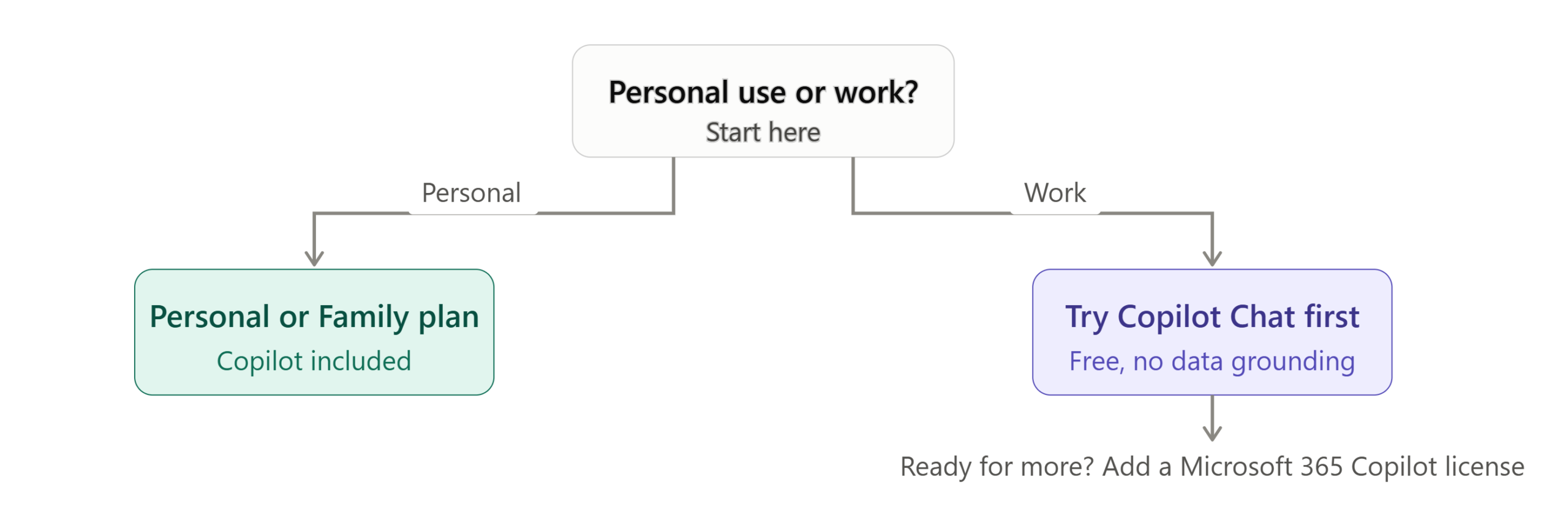
Microsoft Copilot Chat is the free version. If your organization has an eligible Microsoft 365 plan, you likely already have access to it at no extra cost, and it gives you a general purpose AI chat that can browse the web and work with files you upload directly into the conversation. What it does not do is reach into your company’s email, files, or Teams history automatically.
Microsoft Copilot 365 is the paid add-on that unlocks the version most people actually mean when they talk about “using Copilot at work.” This is the one grounded in your organization’s own data, and it is the one that shows up as an assistant panel inside Word, Excel, and the rest. It requires an eligible base Microsoft 365 plan underneath it, plus the add-on license itself.
There used to also be a separate Microsoft Copilot Pro subscription aimed at individuals, but Microsoft folded that into Microsoft 365 Premium, so if you are shopping for a personal plan today rather than a business one, that is the name to look for instead.
Here is the short version, side by side, since the prose above is a lot to hold in your head at once:
| Copilot Chat | Microsoft Copilot 365 | |
|---|---|---|
| Cost | Free with an eligible Microsoft 365 plan | Paid add-on on top of a base plan |
| Sees your company data | No, works with files you upload manually | Yes, grounded in your email, files, and Teams via Microsoft Graph |
| Lives inside Word, Excel, PowerPoint | Limited, mostly a separate chat window | Yes, as a built-in assistant panel |
| Best for | Trying Copilot out, one-off questions | Daily work that depends on your own documents and inbox |
What Copilot Actually Does, App by App
In Word, Microsoft Copilot drafts documents from a short prompt, rewrites clunky paragraphs, and summarizes long documents into something you can skim in thirty seconds. In Excel, it explains what a confusing formula is actually doing, builds new formulas from a plain language description, and can turn a messy sheet into a chart without you touching a pivot table. In PowerPoint, it turns a Word document or a rough outline into an actual slide deck, complete with a reasonable first pass at design.
Outlook is where a lot of people notice Copilot first, since it can draft replies, summarize a long thread you were cc’d on, and pull the key action items out of a meeting recap email. In Teams, it can catch you up on a meeting you joined fifteen minutes late, or summarize an entire channel’s worth of chat so you are not scrolling for ten minutes trying to figure out what you missed.
There is also a newer, more ambitious layer called Work IQ, which Microsoft describes as an intelligence layer connecting your files, your workflows, and your working relationships, including a memory feature that learns your style and preferences over time rather than treating every request as if it is coming from a stranger.
Microsoft Copilot for Individuals Versus Microsoft Copilot for Business
If you are a solo user with a personal Microsoft 365 subscription, Copilot shows up in your Word, Excel, PowerPoint, and Outlook apps as part of your Personal or Family plan, and it only ever sees your own files, never anyone else’s. Microsoft’s own page for individual use is the clearest place to check current details if you are shopping for a personal subscription rather than a work one, since this is the plan type that changes naming most often.
The business version is a different animal entirely. An IT admin deploys it as an add-on to an existing Business or Enterprise plan, and it is the version grounded in your organization’s Graph data rather than just your personal files. This is also where the real decision making happens for a company: whether to roll Copilot out to everyone at once, or to a smaller pilot group first while people get comfortable with it.
Which Microsoft Copilot do you need
Mark, an operations manager at a logistics company in Phoenix, rolled out Microsoft Copilot to his entire 40-person team as soon as the company purchased licenses.
Three months later, fewer than half the team had used it more than a handful of times. Looking back, he realized it would have been better to start with a small pilot group, resolve the initial challenges, and build an internal champion before expanding.
For the second rollout, he began with just five employees who spent much of their day handling repetitive emails and reporting.
The results were noticeably better. Because Copilot solved real, everyday frustrations from day one, those employees quickly saw its value and helped encourage wider adoption across the team.
What Microsoft Copilot Actually Costs
Pricing here changes often enough that it is worth checking Microsoft’s own current pricing page before making any real budget decision, but the general shape as of this writing looks like this. On the business side, Copilot is typically sold as an add-on running somewhere in the high teens to low twenties per user per month on top of an existing Microsoft 365 Business plan, or bundled directly into a higher tier Business Standard or Business Premium plan that already includes it for a bit more per seat.
| Plan type | Roughly what you pay | What you get |
|---|---|---|
| Copilot Chat | Free with an eligible plan | Web-grounded chat, no access to your own files automatically |
| Copilot as an add-on | High teens to low twenties per user, monthly | Copilot added to an existing Business plan you already have |
| Business Standard or Premium with Copilot bundled in | A bit more per seat than the add-on alone | Copilot included from the start, plus the full Microsoft 365 app suite |
| Personal or Family subscription | Bundled into the consumer plan price | Copilot in your own Word, Excel, PowerPoint, and Outlook only |
For individuals, Microsoft Copilot comes bundled into Microsoft 365 Personal and Family subscriptions rather than sold as its own separate product anymore. There is no free trial for the full business version of Copilot, but Copilot Chat itself costs nothing if your organization already qualifies, which makes it a reasonable way to get a feel for the assistant before committing to licenses for an entire team.
Building Your Own Agents With Microsoft Copilot Studio
There is one more piece worth knowing about if you are past the beginner stage: Copilot Studio, which lets a business build its own custom AI agents rather than only using the ones Microsoft ships out of the box. A company might build an agent that answers employee questions about internal HR policy, or one that automatically drafts a first response to a common category of customer support ticket.
Copilot Studio is included with a standard Microsoft 365 Copilot license for internal use inside the organization. Deploying an agent externally, say to customers on a public website rather than just employees, is priced separately and metered by usage. This is squarely a business and IT decision rather than something an individual user needs to worry about day to day, but it explains why some companies talk about Copilot as a platform for building things rather than just a chat assistant.
How Microsoft CopilotCompares to ChatGPT, Claude, and Gemini
The honest answer is that Copilot is not really trying to be a better standalone chatbot than ChatGPT or Claude. Its real advantage is depth of integration: it already lives inside the apps millions of people use for work every day, and it can see your actual files and email without you copying and pasting anything into a separate window.
If you are choosing a general purpose assistant for writing, research, or coding outside of the Microsoft ecosystem, this ChatGPT tutorial for beginners and this Claude Tutorial for Beginners: Master AI in 20 Minutes (Step-by-Step Guide) are both worth a look,
and this broader 5 AI tools to save time and earn money- Honest Results, No Sponsorship covers several others besides. 12 Best AI Chatbots in 2026: ChatGPT, Claude, Gemini & More Compared,
Expllore How to Integrate Microsoft Copilot Into Systems: A Complete Guide
AI Tool Comparison: ChatGPT vs Claude vs Gemini vs Copilot – Pros, Cons & Best Uses
Getting More Out of Copilot: A Few Honest Tips
Vague prompts get vague results here just like everywhere else. Asking Copilot to “write a proposal” produces something generic; asking it to draft a proposal for a specific client based on the notes from last Tuesday’s call produces something you can actually send with light editing. The same clear, specific prompting habits that make prompt engineering worth learning for any AI tool apply directly here.
Rolling Copilot out to an entire department on day one, before anyone knows what it is actually good for, is the single most common mistake companies make with it. A small pilot group, a few genuinely useful examples people can point to, and a gradual expansion tend to work far better than handing out a hundred licenses and hoping people figure it out.
It is also worth remembering that Copilot inside Word or Excel solves a different problem than an automation tool like Microsoft Power Automate. Copilot helps you produce something faster in the moment; Power Automate builds a workflow that keeps running without you. Plenty of teams end up using both, for different jobs.
Where Copilot Still Falls Short
It is also important to understand Copilot’s limitations, as vendor websites rarely emphasize them.
Like other AI assistants, Copilot can misinterpret context in long or complex email threads. It may produce a confident summary that misses the main point or highlights the wrong information.
Copilot can also generate convincing but incorrect facts or figures in documents. This AI “hallucination” issue is not unique to Copilot, so any content containing specific numbers, statistics, or factual claims should always be reviewed by a human before it is shared.
Another factor is data quality. Copilot performs best when your organization’s files, emails, and documents are well organized.
If your SharePoint libraries or shared folders contain years of poorly labeled or outdated content, Copilot is more likely to return incomplete or less useful responses. Organizations with clean, well-structured information typically get much better results.
None of this makes Copilot not worth using. It just means treating its first draft as a draft, the same habit worth building with any AI writing tool, rather than assuming the sparkle icon means the output needs no further look.
Explore more Blogs AI Learning Hub. Subscribe to AI Pathway Lab for more AI guides and tutorials AI Tools & News
Frequently Asked Questions
Is Microsoft Copilot free to use?
Copilot Chat is free for anyone with an eligible Microsoft 365 plan, but the full Microsoft 365 Copilot experience that connects to your emails, files, and Teams data is a paid add-on. There is no free trial for the paid version, though Copilot Chat gives a reasonable sense of the assistant beforehand.
What is the difference between Copilot Chat and Microsoft Copilot?
Copilot Chat is a general AI chat assistant that does not automatically see your organization’s data. Microsoft 365 Copilot is the paid version grounded in your actual emails, documents, and Teams conversations through the Microsoft Graph.
Does Copilot work in Google Workspace or only Microsoft 365?
Copilot is built specifically for the Microsoft 365 ecosystem, including Word, Excel, PowerPoint, Outlook, and Teams. It is not designed to work inside Google Workspace apps.
Is my company data safe if I use Copilot?
Microsoft Copilot business plans are built with enterprise level data protection and access controls, and Copilot only surfaces information the individual user already has permission to see. That said, any organization rolling this out should review its own data governance settings before a wide launch rather than assuming defaults are correct.
Should a small business bother with Copilot, or is it just for big enterprises?
Copilot has plans built for smaller Business tier subscriptions, not just large enterprise agreements, so a small business is not priced out by default. The bigger question for a small team is usually whether the workload actually justifies the added cost per seat, which is worth testing with Copilot Chat first before paying for the full add-on
Final Thoughts
Microsoft Copilot is genuinely useful once you understand which version you are actually looking at and stop expecting it to be a magic fix on day one. The free Copilot Chat is worth trying regardless, and the paid, fully integrated version earns its cost mainly for people who live inside Word, Excel, Outlook, and Teams for most of their working day. Like most AI tools, it rewards a specific prompt over a vague one, and a small, thoughtful rollout over dropping it on an entire team all at once.