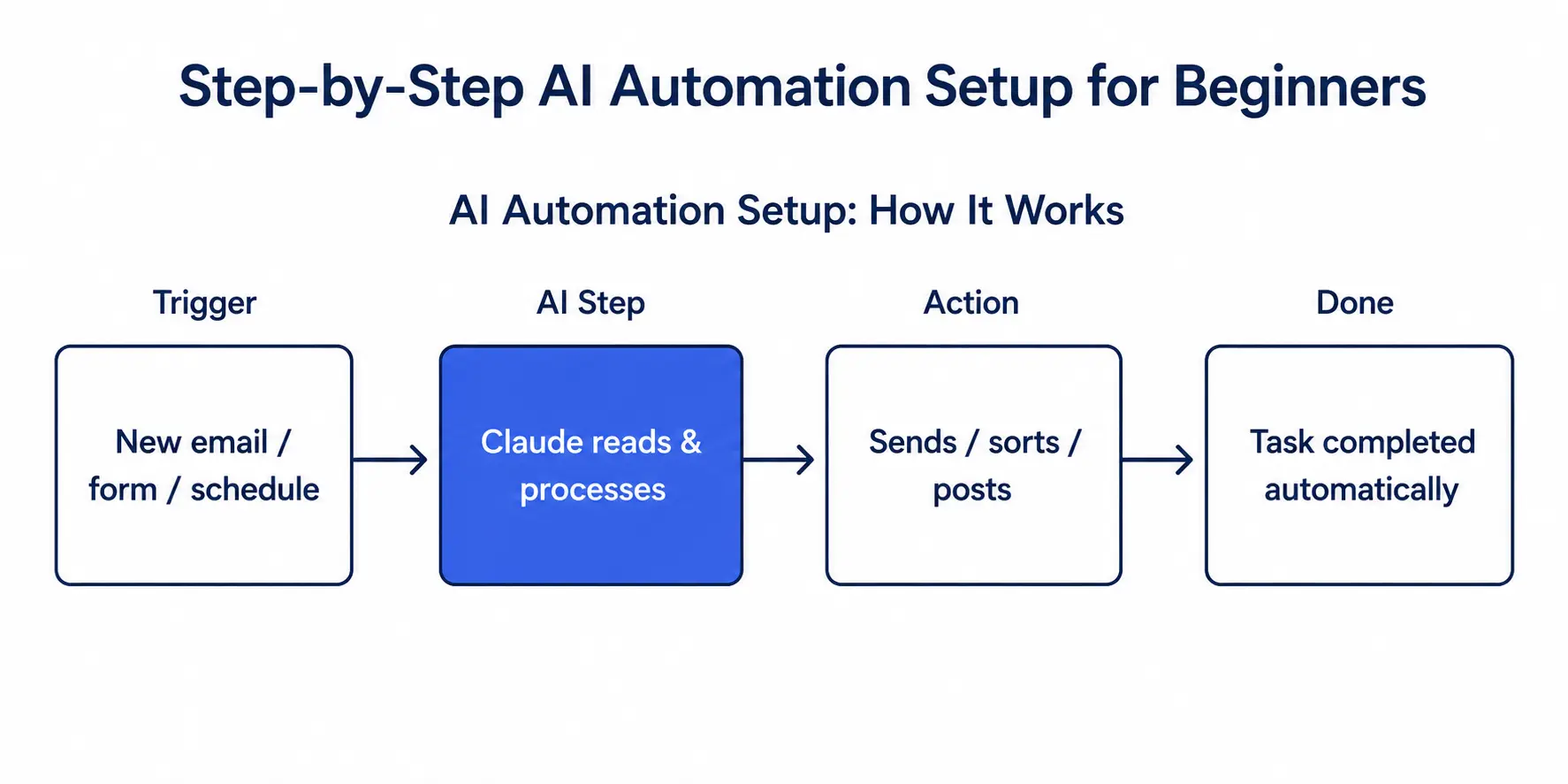
A successful AI automation setup starts with a clear goal, the right tool, and a workflow that a beginner can actually maintain. This guide walks through the entire process from planning to testing, compares the most common tools side by side, and shows real examples so anyone can follow along without a technical background.
Table of Contents
What Is an AI Automation Setup
An AI automation setup is a system that connects an AI tool, such as Claude or ChatGPT, to everyday apps so repetitive tasks run without manual effort. Instead of writing the same email reply or sorting the same spreadsheet rows by hand, a well-built version of this system handles the task automatically once a trigger condition is met.
Sarah, a small business owner in Austin, spent three hours every week manually replying to customer inquiries. After building her first AI automation setup with a simple trigger and response template, that task now takes fifteen minutes of review instead of three hours of writing.
This kind of workflow is different from plain automation because it adds a thinking step. A regular automation might move a file from one folder to another. An AI-powered version can read that file, summarize it, decide what category it belongs in, and then move it, all without a human reading it first.
Why Beginners Should Learn AI Automation Setup Basics
Learning the fundamentals of an AI automation setup pays off quickly because most business tasks follow predictable patterns. Once someone understands how a basic version works, they can apply the same structure to dozens of different tasks, from customer support to data entry to content scheduling.
A beginner does not need coding experience to build a working AI automation setup. Modern platforms use visual, drag-and-drop builders, which means the real skill in any of these workflows is defining the logic, not writing code. The learning curve is closer to organizing a checklist than learning a programming language.
Employers are also starting to look for this skill directly. Listing even one completed automation project on a resume signals that a candidate can think in workflows, not just individual tasks, which is increasingly valuable across marketing, operations, and customer support roles.
Explore 7 AI Side Hustles You Can Start Today, No Skills, No Experience Needed
Step 1: Define the Task Before Starting Your AI Automation Setup
Every reliable AI automation setup begins with a single, specific task rather than a vague goal. Instead of trying to automate an entire department, pick one repeatable action, such as summarizing incoming emails or generating a weekly report.
Marcus, a marketing coordinator in Denver, made the mistake of trying to automate his entire content calendar in his first AI automation setup attempt. He later restarted with a narrower scope, automating only the task of drafting social captions from blog titles, and that smaller version succeeded on the first try.
A useful way to define the task is to write one sentence in this format: when X happens, do Y, then Z. For example, when a new lead fills out a form, summarize their message with AI, then send the summary to the sales team on Slack. If the task cannot fit that sentence, it is probably too broad for a first attempt.
Step 2: Choose the Right Tools for Your AI Automation Setup
The tool selection stage shapes everything else about this kind of project, and beginners usually have four solid options. Each one fits a different kind of user, so it helps to compare them directly before committing to one.
Zapier
Zapier is often the first stop for a beginner building their first automated workflow because of its simple, sentence-style builder and its library of thousands of app connections. A workflow in Zapier is called a Zap, and most Zaps follow the same trigger and action pattern used throughout this guide. Zapier works well for individuals and small teams that need to connect popular apps like Gmail, Slack, and Google Sheets without touching a single line of code.
Make
Make, formerly known as Integromat, uses a visual canvas where each step appears as a connected node. This style suits people who think in diagrams rather than lists, and it allows more complex branching logic than a typical beginner needs at first. This kind of build using Make can include multiple conditional paths, which makes it a good second tool once someone has outgrown a simple linear workflow.
Explore /Make.com Tutorial
Microsoft Power Automate
For anyone whose workplace already relies on Outlook, Teams, and Excel, a Microsoft Power Automate based AI automation setup tends to be the fastest path since the connectors are already built in. Power Automate also integrates directly with SharePoint and Dynamics, which makes it the natural choice inside larger organizations that already run on the Microsoft 365 ecosystem.
Explore Microsoft Power Automate Tutorial for Beginners: Create Your First 5 Automated Workflows
n8n
n8n is an open source option that appeals to beginners who want more control without paying for every connection. It can be self hosted for free or used through a paid cloud plan, and it supports the same trigger and action structure as the other tools while allowing custom code blocks for anyone who later wants to go beyond the visual builder.
Explore Automating Faceless Shorts with n8n and AI: Complete No-Code Guide
Comparing the Four Options
Zapier suits speed and simplicity for a first project. Make suits visual thinkers who expect to build branching logic later. Power Automate suits Microsoft heavy workplaces. n8n suits budget conscious builders who do not mind a slightly steeper learning curve. A full breakdown of these platforms, along with other AI tools worth trying, is available on the AI Tools page. For a solo creator testing their first workflow, a Zapier based project often has the gentlest starting point.
Step 3: Connect the AI Model to Your Workflow
Most platforms now allow a direct connection to an AI model as part of the AI automation setup. This step usually involves adding an API key or authorizing an app, then telling the automation what prompt or instruction the AI should follow at that stage of the process.
A typical AI automation setup at this stage might read: when a new form response arrives, send the text to Claude with a summarization prompt, then post the summary to a Slack channel. Keeping each step this specific makes the whole workflow easier to debug later. Writing that instruction clearly matters more than which tool is used to send it, so it helps to spend extra time on the wording using the tips in this prompt engineering guide rather than rushing to the next step. For more advanced connections between an AI model and outside tools and data sources, see this guide to the Model Context Protocol, which explains how AI models can reach further into a company’s own systems.
Step 4: Build and Test the Trigger
Every AI automation setup relies on a trigger, the event that starts the workflow. Common triggers include a new email arriving, a form being submitted, or a scheduled time being reached. Testing the trigger with sample data before going live is one of the most important habits a beginner can build.
Priya, an operations assistant in Seattle, tested her first AI automation setup with five sample emails before turning it on for her full inbox. That testing step caught a formatting error that would have sent broken replies to real customers.
A simple way to test safely is to point the trigger at a private test folder or a personal test email address first, run five to ten sample cases through it, and only connect it to the live inbox or shared channel once every test case behaves as expected.
Step 5: Add Error Handling and Monitoring
A mature AI automation setup includes a plan for what happens when something goes wrong. Most platforms offer built in logs, error notifications, or a fallback path that alerts a human when the automation cannot complete a step. Skipping this stage is the most common reason a beginner workflow fails silently.
Setting a weekly reminder to review the automation history is a simple but effective habit. A five minute weekly check keeps this kind of workflow reliable long after the initial excitement of building it has faded. Most platforms, including Zapier and Make, will also send an email automatically when a step fails, which removes the need to check manually every single day.
Step 6: Scale the Automation Gradually
Once the first AI automation setup runs smoothly for a few weeks, it becomes much easier to expand. Beginners often add a second and third automation once they trust the pattern from their original build, gradually creating a small library of connected workflows.
Rather than combining several tasks into one large workflow, most experienced builders recommend keeping each AI automation setup focused on a single task and linking them together only when necessary. This keeps troubleshooting simple, since a failure in one workflow does not break the others. A useful rule of thumb is that if a single workflow needs more than five or six steps to explain out loud, it is probably a sign that it should be split into two smaller ones.
Common Mistakes to Avoid in an AI Automation Setup
Skipping the planning stage is the most frequent mistake in a beginner AI automation setup. Jumping straight into a tool without mapping the workflow on paper first often leads to a confusing, hard to fix result.
Overcomplicating the first AI automation setup is another common issue. A workflow with ten steps and three conditional branches is much harder to test and maintain than a simple three step version, especially for someone building their very first project.
Ignoring cost limits is a mistake that shows up later rather than immediately. Most tools charge based on the number of tasks or operations run each month, so a workflow that seemed free during testing can start generating charges once it processes real volume. Checking the pricing page of the chosen tool before scaling up avoids an unpleasant surprise on the next billing cycle.
AI Automation Setup Use Cases Beginners Can Try First
A few starter projects tend to work well as a first build because they are low risk and easy to measure. Summarizing incoming customer emails and posting the summary to a shared channel is a common first choice, since it saves time without touching anything customer-facing directly.
Drafting first versions of social media captions from a list of blog titles is another popular starting point, useful for anyone managing a content calendar. Sorting incoming form submissions into categories, such as sales lead, support request, or general inquiry, is a third option that works well because the AI only needs to make one decision per submission.
Generating a short weekly summary of a spreadsheet or report and emailing it to a manager is a fourth common use case, and it demonstrates the value of an AI automation setup clearly since the output is something a person actually reads every week.
Tools That Make an AI Automation Setup Easier
Beginners exploring an AI automation setup for the first time generally start with one of three categories of tools. No code platforms like Zapier, Make, and n8n handle the connections between apps. AI models like Claude and ChatGPT handle the thinking and writing tasks inside the workflow. Native tools like Microsoft Power Automate work best when a workplace already runs on Microsoft 365.
Combining a no code connector with an AI model is currently the most beginner friendly path to a working automated workflow, since neither piece requires custom code to function. Building this kind of skill is also useful for anyone exploring AI career paths, since automation experience is increasingly valued across roles that were not traditionally considered technical.
Quick Checklist Before Going Live
Before switching a new workflow on, it helps to run through a short checklist. Confirm the trigger has been tested with at least five sample cases, confirm error notifications are turned on, confirm the AI prompt has been reviewed for clarity, and confirm someone knows how to pause the workflow if something looks wrong. Running through these four checks takes only a few minutes and prevents most of the early mistakes beginners run into during their first week of use.
Final Thoughts on Building Your First AI Automation Setup
A successful AI automation setup does not require technical training, just a clear task, a reliable tool, and the patience to test before going live. Starting small, testing thoroughly, and expanding gradually turns a single build into a lasting productivity habit. Anyone wanting a deeper foundation in AI concepts before diving in can also work through this list of free AI courses with certificates.
In practice, small means one trigger, one AI step, and one clear outcome, not a workflow that tries to touch five different apps on its first attempt. Tested means the sample cases from Step 4 actually ran through the workflow and produced the expected result, not just that the builder saved without an error message. Skipping either of these on the promise of moving faster is usually what turns a promising first project into one that gets quietly switched off a few weeks later.
Once that first build is running reliably, the shift in mindset is worth noticing. The task that used to take an hour every week now takes minutes of review, and that freed up time is the real return on the effort spent setting it up. Most people find that the second and third workflows come together faster than the first, since the trigger and action pattern learned early carries over directly, even when the task itself is completely different.
The tools compared in this guide will keep changing, with new AI connectors and platform updates arriving regularly, but the underlying approach stays the same: define one task clearly, test it with real examples, watch it closely at first, and only then let it run on its own.explore AI Automation & Workflows.
Explore our Blogs page Subscribe to AI Pathway Lab
Frequently Asked Questions
What is the easiest tool for a first AI automation setup?
Zapier is generally the easiest starting point for a first AI automation setup because of its visual builder and large app library. Microsoft Power Automate works well for teams already using Microsoft 365.
Do I need coding skills for an AI automation setup?
No coding skills are required for a basic AI automation setup. Most platforms use drag and drop builders, so the main skill needed is defining the workflow logic clearly.
How long does it take to build a basic AI automation setup?
A simple AI automation setup can usually be built and tested within a single afternoon. More complex workflows with multiple steps may take a few days of testing before going live.
What is the biggest risk in an AI automation setup?
The biggest risk in an AI automation setup is skipping the testing stage before going live with real data. Testing with sample inputs first catches most formatting and logic errors early.
Can Claude be used inside an AI automation setup?
Yes, Claude can be connected to most no code platforms as the AI step inside this kind of workflow. It is commonly used for summarizing text, drafting replies, and classifying incoming data.
Should beginners automate one task or several at once?
Beginners should always start an AI automation setup with a single task rather than several at once. This makes testing simpler and makes it much easier to identify the cause of any error.
Is Zapier or Make better for a first AI automation setup?
Zapier is usually simpler for a first project because of its linear, sentence style builder. Make suits builders who already expect to need branching logic soon after the first version.