Table of Contents
Claude Artifacts turn a regular chat response into something far more useful: a standalone document, app, or visualization that lives in its own window and can be edited, downloaded, or shared with a link. Instead of scrolling back through a conversation to find a piece of code or a draft document, Claude Artifacts keep that content separate and easy to work with. This guide explains what Claude Artifacts actually are, how to turn the feature on, and practical ways to use them, based on Anthropic’s own documentation. Anyone brand new to Claude overall can start with this Claude tutorial for beginners before diving into artifacts specifically.
What Are Claude Artifacts
Claude Artifacts are a built-in feature that turns a Claude response into an interactive, visual output displayed in a dedicated panel next to the conversation. According to Anthropic’s official documentation, Claude creates an artifact when the content is significant and self -contained, typically over fifteen lines, and is something a person is likely to want to edit, iterate on, or reuse outside the conversation.
Common examples of Claude Artifacts include documents written in Markdown or plain text, code snippets, single-page HTML websites, SVG images, diagrams and flowcharts, and interactive React components. Rather than living buried inside a long back-and-forth conversation, this content gets its own dedicated window where it can be viewed, copied, downloaded, or built upon further.
How Claude Artifacts Differ From a Regular Response
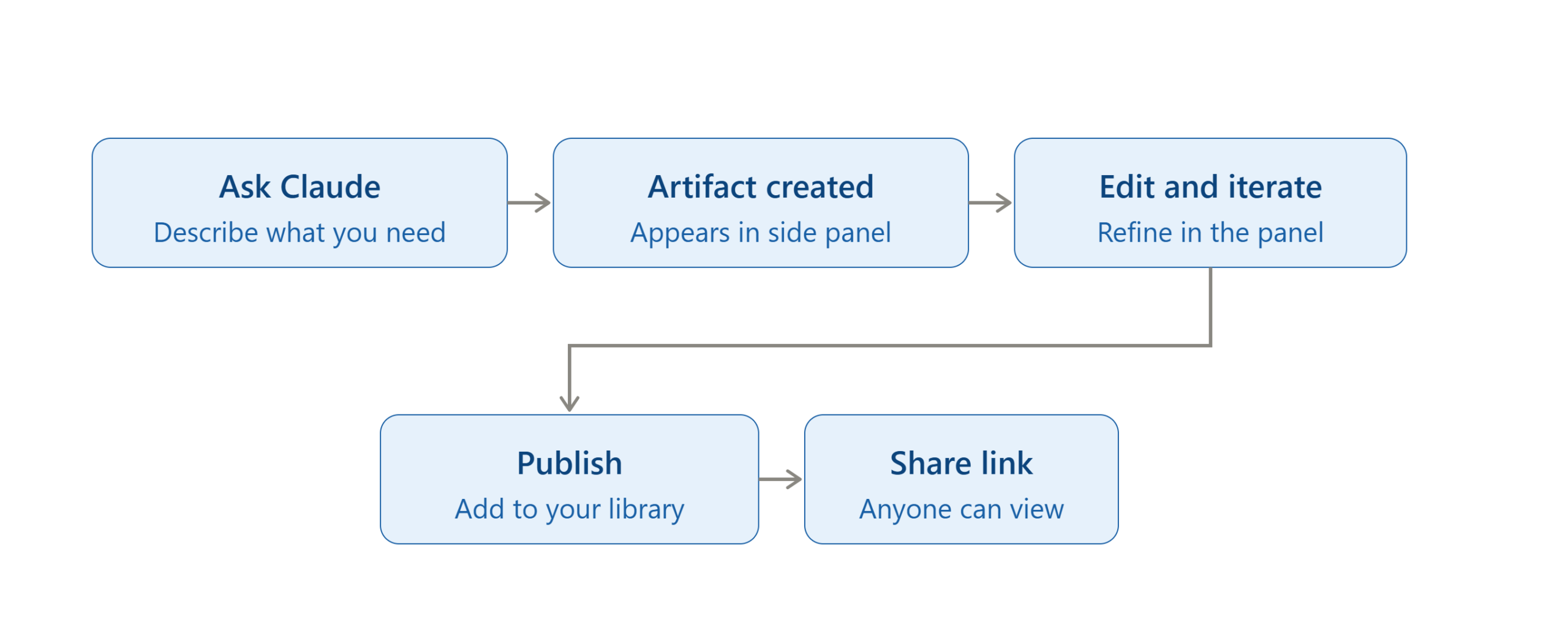
A normal Claude response is just text in the conversation. Claude Artifacts, by contrast, appear in a separate panel that stays visible while the conversation continues underneath it. This distinction matters because it changes how a person actually works with the content Claude produces.
Priya, a nonprofit program coordinator in Denver, used to copy code snippets and draft reports out of long chat threads into a separate document by hand. Once she started using Claude Artifacts regularly, that copy-paste step disappeared entirely, since the content she needed to keep was already sitting in its own editable window from the moment Claude created it.
How to Enable Claude Artifacts
As of Anthropic’s current documentation, Claude Artifacts require Code execution and file creation to be turned on first. On a Free, Pro, or Max plan, this is done by clicking your name in the lower left corner, navigating to Settings, then Capabilities, and toggling Code execution and file creation on. On a Team or Enterprise plan, an organization Owner enables this the same way through Organization settings rather than individual account settings.
Once enabled, Claude decides on its own when a response is substantial enough to become an artifact, so there is no need to explicitly request one every time, though asking directly also works well if Claude does not create one automatically.
Working With an Artifact Once It Is Created
When Claude creates an artifact, it appears in a dedicated window to the right of the main chat. From there, several actions are available directly inside that window. Ask Claude to modify or update the content, and the changes appear in the artifact panel rather than as a new block of text in the conversation.
For Markdown documents specifically, editing is even more direct: highlighting a section of text and clicking Edit with Claude lets a person request a change to just that portion, without needing to describe which part of the document they mean. A version selector also lets someone switch between earlier and later versions of the same artifact, and the lower right corner of the window offers options to view the underlying code, copy the content, or download the file for use outside the conversation.
Managing Multiple Artifacts in One Conversation
A single conversation is not limited to a single artifact. Claude can create several artifacts across one chat, and a slider icon in the upper right of the screen lets a person switch between them. This is useful for anything with multiple distinct outputs, such as a project involving both a written document and a matching code snippet, where keeping the two separate makes each easier to review on its own. Developers working inside Claude Code specifically can also publish session output as artifacts, a related feature documented on Claude Code’s own artifacts guide.
When asking Claude to make a change, it helps to be clear about which artifact the request applies to, since Claude needs to know which one to reference when several are open in the same session.
Publishing and Sharing Claude Artifacts
One of the more powerful aspects of Claude Artifacts is the ability to share them outside the conversation entirely. Clicking Publish on an artifact adds it to the dedicated Artifacts section in the Claude sidebar and generates a link that can be sent to anyone. According to Anthropic’s documentation on publishing and sharing artifacts, recipients do not need a Claude account to view a published artifact, though creating a free account allows them to remix it into their own editable copy.
Marcus, a small business owner in Nashville, built a simple pricing calculator as a Claude Artifact and published it so customers could use it directly from a link on his website, without needing to sign up for anything just to try the tool. Artifacts created on Team or Enterprise accounts work slightly differently, since Anthropic’s documentation notes that those can only be shared within the organization rather than published publicly.
AI-Powered Claude Artifacts
Beyond static documents and visualizations, Claude Artifacts can also embed AI capabilities directly, turning them into functioning AI-powered apps. A person building this kind of artifact simply describes what they want, and Claude writes the code so the resulting app runs on Anthropic’s own infrastructure rather than requiring separate hosting. This is a different path than working with the Claude API directly, since an AI-powered artifact skips the key management and deployment steps a typical API integration requires.
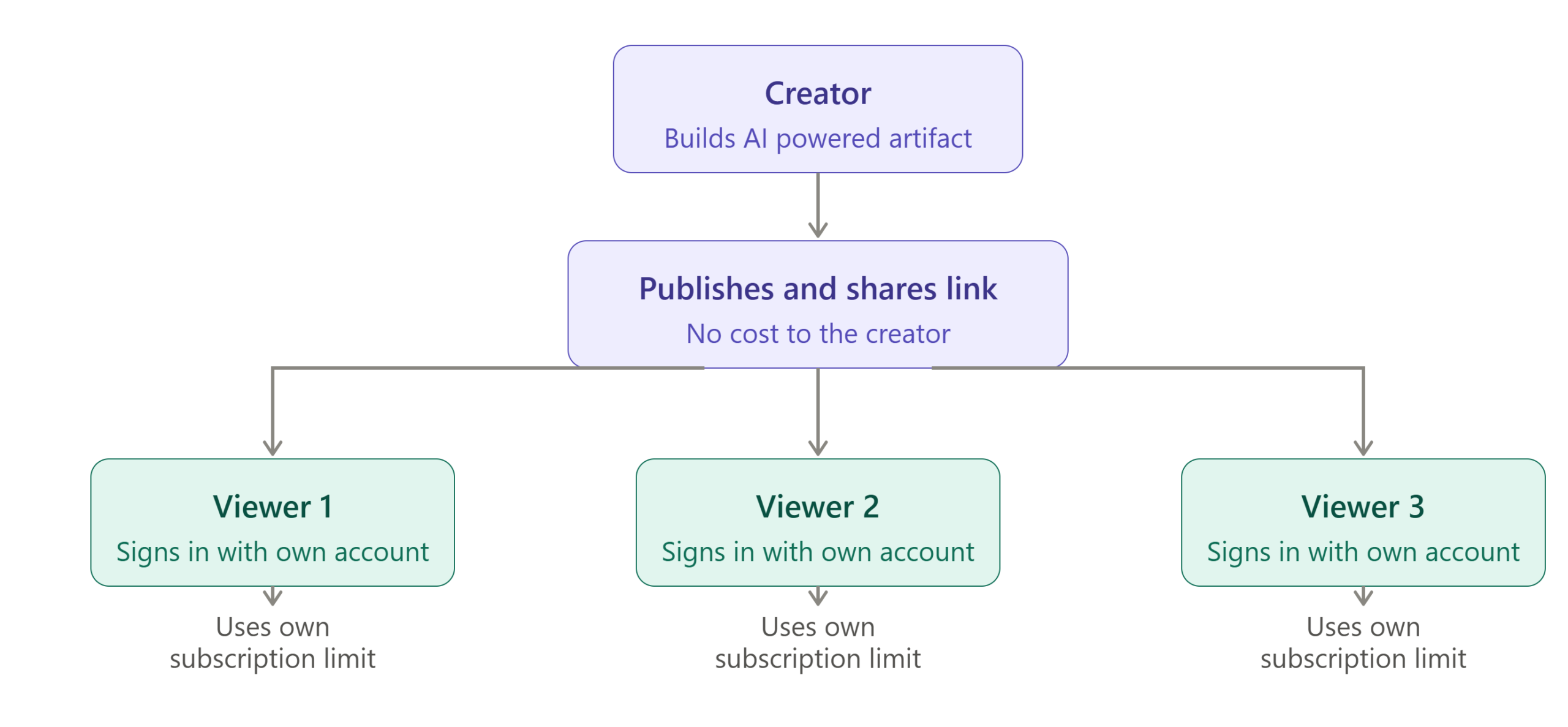
Anyone who opens a shared AI-powered artifact authenticates with their own Claude account and interacts with their own instance of it, and according to Anthropic’s documentation, usage counts against that person’s own subscription limits rather than the creator’s. This means sharing an AI-powered artifact costs the creator nothing, whether it is used by ten people or ten thousand.
Persistent Storage in Claude Artifacts
Some Claude Artifacts need to remember information across sessions rather than starting fresh every time they are opened, and Anthropic’s documentation confirms this is supported through persistent storage on Pro, Max, Team, and Enterprise plans. A journal style artifact might use personal storage, keeping each user’s entries private, while a leaderboard style artifact might use shared storage so everyone sees the same data.
This storage comes with a twenty megabyte limit per artifact and only accepts text, not images or other binary files. Persistent storage only becomes active once an artifact has actually been published, so testing and development happen without it until the artifact goes live.
Connecting Claude Artifacts to External Tools
Claude Artifacts can also connect to outside services through the Model Context Protocol, allowing an artifact to read from or write to tools like Google Calendar, Gmail, or Slack. This integration is available on Pro, Max, Team, and Enterprise plans, and works alongside any custom MCP servers a person has already configured. Anyone curious about how this deeper connection between an AI model and outside systems actually works can read more in this guide to the Model Context Protocol.
The first time an artifact needs to use a connected tool, a person is prompted to approve that access, and the approval carries over for future use of the same artifact rather than asking again every time.
Practical Ways to Use Claude Artifacts
Claude Artifacts fit naturally into several everyday tasks. Drafting and refining a document, such as a report or a blog post, benefits from having the full text sitting in an editable window rather than scattered across chat messages. Building small internal tools, like a simple calculator or a data formatting script, is another common use, especially for people without a traditional software background who still want something functional.
Creating diagrams and flowcharts to explain a process is a frequent use case as well, since the visual result can be downloaded or embedded directly rather than described in words alone. This overview of writing clearer instructions for Claude, covered in this prompt engineering guide, applies directly to getting better results from this feature, since a well specified request tends to produce an artifact that needs far less back and forth editing afterward.
Claude Artifacts Compared to Other AI Automation Tools
Claude Artifacts share some conceptual overlap with the broader world of AI automation, though the two solve somewhat different problems. Where a tool covered in this AI automation guide connects apps together to run a recurring workflow automatically, Claude Artifacts are better suited to building a single standalone piece of content or a small interactive tool on demand.
Someone building a recurring business process is usually better served by an automation platform, while someone who needs a one off document, calculator, or visualization gets there faster with Claude Artifacts directly inside the conversation.
Getting the Most Out of Claude Artifacts
A few habits make a noticeable difference in how useful Claude Artifacts turn out to be. Asking for a large, complex artifact in a single vague request often produces something that needs significant rework, whereas describing the intended format and outcome clearly upfront, such as asking for a single page HTML tool rather than a general description of what it should do, tends to produce a more usable first draft.
Reviewing the artifact once it appears and giving targeted feedback, rather than starting over from scratch, also saves time. Claude can iterate on an existing artifact far more efficiently than regenerating it entirely, so a specific note like “make the second section shorter” or “change this button’s color” tends to land faster than restating the whole request from the beginning. Forgetting to publish an artifact before sharing a link is another common early mistake, since an unpublished artifact only exists inside that specific conversation and is not accessible to anyone else.
Claude Artifacts vs a Traditional Development Workflow
For anyone used to building small tools the traditional way, setting up a project folder, choosing a framework, and configuring a hosting environment before writing a single line of working code, Claude Artifacts remove nearly all of that setup. A simple calculator or a data formatting tool that might otherwise take an afternoon of environment configuration can go from description to working prototype in the same conversation.
This does not replace a full development workflow for anything that needs to scale, integrate deeply with existing infrastructure, or handle sensitive production data. What it replaces well is the large middle category of small, useful tools that used to not get built at all, because the setup cost was not worth it for something only one team or one person would ever use. Diego, a high school teacher in San Antonio, built a simple vocabulary quiz generator as a Claude Artifact for his Spanish class in under ten minutes, something that would never have justified hiring a developer or learning a coding framework just to save a few hours of manual quiz writing each week.
The gap this fills is worth naming directly: most small tools that would genuinely help a single classroom, a five person team, or one household never get built, not because nobody thought of them, but because the cost of setting up even a minimal development environment always outweighed the benefit for something so narrowly scoped. Removing that setup cost does not turn everyone into a software developer, but it does mean a much longer list of small, specific problems now have a realistic path to an actual working solution rather than staying an idea that never quite gets prioritized.
Conclusion
Claude Artifacts turn Claude from a purely conversational tool into something closer to a lightweight workspace, letting a person create, edit, publish, and share substantial pieces of content without leaving the chat interface. Whether the goal is drafting a document, building a small AI-powered app, or creating a diagram to share with a team, this feature removes much of the friction that used to come with moving AI generated content into a usable, standalone form.
What makes this genuinely useful in practice is how naturally it fits into an iterative way of working. A first draft rarely needs to be the final version, and having that draft sitting in its own window makes it easy to request a change, look at the result immediately, and request another adjustment without losing the thread of the original conversation. This matters just as much for a two page document as it does for a small interactive tool, since both benefit from the same edit and review cycle rather than a single one-shot generation.
The range of what fits inside this workflow also keeps expanding. A person might start by using it for something simple, like formatting a report or sketching a flowchart, and later find themselves building a small internal tool that would have previously required hiring a developer or learning to code. Anyone who has not tried Claude Artifacts yet can start with something simple, like a one-page document or a small diagram, before moving on to more ambitious AI-powered tools.
Explore more articles from AI blogs AI Learning Hub subscribe to AI Pathway Lab explore AI Tools & News
- What Are AI Agents? Complete Beginner Guide 2026
- 12 Proven Ways to Make Money With AI That Actually Work
- How to Become an AI Engineer in 2026: Complete Roadmap
- Free AI Courses with Certificate in 2026
Frequently Asked Questions
Do I need a paid plan to use Claude Artifacts?
No, Claude Artifacts are available on Free, Pro, Max, Team, and Enterprise plans. Some advanced features, including persistent storage and MCP integration, require a paid plan.
How do I turn on Claude Artifacts?
Claude Artifacts require Code execution and file creation to be enabled first, found under Settings and then Capabilities on an individual account, or Organization settings on a Team or Enterprise plan. Once enabled, Claude creates artifacts automatically when content is substantial enough to warrant one.
Can someone view my published Claude Artifact without a Claude account?
Yes, published Claude Artifacts can be viewed by anyone with the link, without needing a Claude account. Creating a free account allows a viewer to remix the artifact into their own editable copy.
What types of content can become a Claude Artifact?
Claude Artifacts commonly include Markdown documents, code snippets, single page HTML websites, SVG images, diagrams, and interactive React components. Claude decides automatically when a piece of content is significant and self contained enough to become one.
Can Claude Artifacts connect to other apps like Gmail or Slack?
Yes, Claude Artifacts can connect to external services through the Model Context Protocol on Pro, Max, Team, and Enterprise plans. This allows an artifact to read from or write to tools like Google Calendar, Gmail, and Slack directly.
Does sharing an AI powered Claude Artifact cost the creator anything?
No, usage of a shared AI powered artifact counts against each viewer’s own Claude subscription limits rather than the creator’s. This makes it free to share an AI powered artifact regardless of how many people use it.