Table of Contents
This ChatGPT tutorial walks through everything you need to go from a blank sign-up page to using ChatGPT confidently for work, study, and everyday tasks. Whether the goal is writing better emails, learning to code, or generating images for a project, this ChatGPT tutorial for beginners covers the interface, plans, prompts, and features that make ChatGPT genuinely useful once the basics click into place.
What Is ChatGPT?
ChatGPT is an AI chatbot built by OpenAI, and the first goal of this ChatGPT tutorial is explaining what it actually does. It understands natural language and responds the way a knowledgeable person might, rather than returning a list of search results. It can answer questions, write content, summarize documents, generate code, analyze data, brainstorm ideas, and handle dozens of other tasks through a simple back-and-forth conversation.
A short example makes this concrete. Typing “Explain how compound interest works using a savings account example” produces a clear, conversational explanation with a worked example, not a dictionary definition. Ask a follow-up question, such as “Now show me the same idea with monthly contributions,” and ChatGPT builds on the previous answer rather than starting over, the core experience this ChatGPT tutorial for beginners is built around.
How Does ChatGPT Work?
Understanding the mechanics behind ChatGPT, even at a simple level, makes the rest of this ChatGPT tutorial easier to follow. ChatGPT is built on a large language model, trained on enormous amounts of text so it learns the patterns of how language is typically used. Rather than looking up facts in a database, the model predicts the most likely next word based on everything written so far in the conversation, which explains why ChatGPT sometimes sounds confident even when it is wrong.
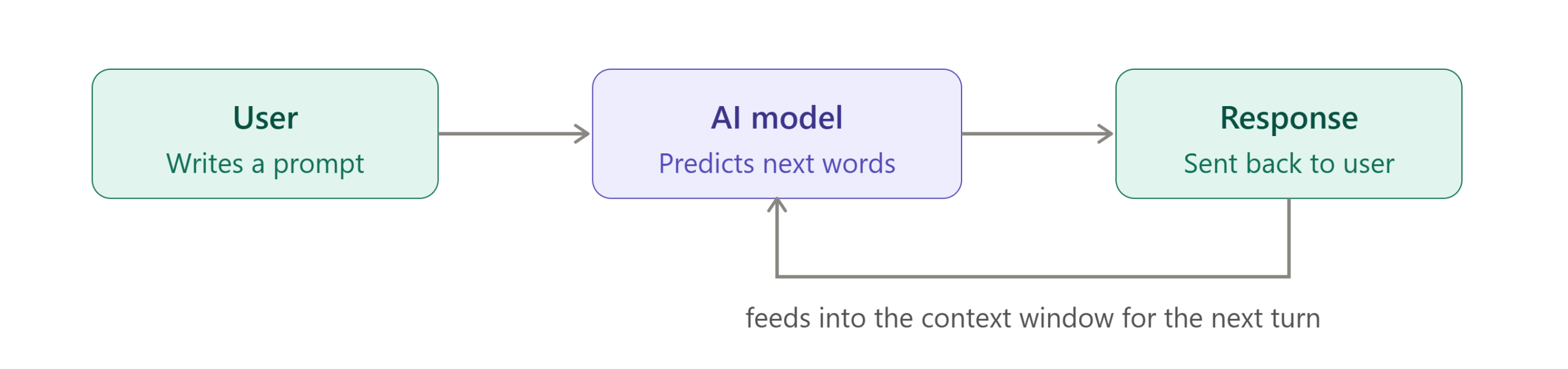
The prompt, meaning whatever a person types in, sets the direction for that prediction. A short prompt with little context gives the model less to work with, while a detailed prompt narrows down what a good response should look like, which explains why two people can get completely different results from what looks like a similar question. The conversation also has a context window, a limit on how much of the current chat the model can actively consider at once, and if memory is turned on, ChatGPT can also recall relevant details from earlier conversations.
The basic flow looks like this: a person writes a prompt, the AI model processes it against everything it learned during training plus the current conversation, and it returns a response built word by word based on what is statistically most likely to be useful. Keeping this simple model in mind makes every later feature, from memory to custom GPTs, easier to understand.
ChatGPT Free vs Plus vs Pro
Choosing a plan is one of the first decisions in this ChatGPT tutorial for beginners. OpenAI’s pricing changes fairly often, so it is worth checking the current details on OpenAI’s official pricing page before deciding, but the general shape of each tier is consistent.
| Feature | Free | Plus | Pro |
|---|---|---|---|
| Monthly price | $0 | Around $20 | $100 to $200, depending on usage tier |
| Model access | Standard model with usage limits | Broader model access, including advanced reasoning options | Highest usage limits and priority access to the most capable reasoning models |
| Response speed | Standard, slower during peak times | Priority access during high demand | Fastest available performance |
| Image generation | Limited or unavailable | Included | Included, with higher limits |
| Deep Research | Limited or unavailable | Included with monthly limits | Included with significantly higher limits |
| Custom GPTs | View and use public GPTs | Create and use custom GPTs | Create and use custom GPTs |
| File uploads | Limited | Higher limits | Highest limits |
| Voice Mode | Available with limits | Available with higher limits | Available with the fewest restrictions |
The Free plan works well for casual use, such as quick questions or occasional writing help. Plus is the plan most individuals settle on once they use ChatGPT regularly, since it removes most of the friction around limits and unlocks features like custom GPTs and Deep Research. According to OpenAI’s own description of the Plus plan, subscribers get priority access during high-traffic periods along with higher model limits than Free. Pro is built for people running AI-assisted work nearly all day, particularly anyone doing heavy research, coding, or complex analysis. Starting on the wrong plan either wastes money or creates unnecessary friction early on. For a broader look at where AI tools like this are heading, this overview of the future of AI covers the wider trends shaping tools like ChatGPT.
How to Create a ChatGPT Account
Getting started is simple. Visit chatgpt.com directly rather than searching for it, since lookalike sites do exist. Click Sign Up and choose to register with an email address, or use an existing Google, Microsoft, or Apple account for a faster setup. If signing up with email, check the inbox for a verification message and confirm the account before logging in for the first time.
Once verified, log in and the main chat screen loads automatically. Typing directly into the message box at the bottom of the screen and pressing enter starts the first conversation. This ChatGPT tutorial for beginners assumes a Free account to start, since every feature discussed here becomes accessible progressively as an account is later upgraded, and setup rarely takes more than a couple of minutes, making it one of the fastest parts of this entire ChatGPT tutorial for beginners.
Interface Explained
The interface can feel busy at first glance, so it helps to know what each element actually does before diving into a first prompt.
New Chat, the starting point for most sessions in this ChatGPT tutorial, starts a fresh conversation with no memory of the current thread, useful when switching to a completely unrelated topic. The sidebar lists previous conversations, organized roughly by recency, and clicking any of them reopens that full thread. Search lets a person find a specific past conversation by keyword rather than scrolling manually. Projects group related conversations and files together, which is useful for anyone working on a single ongoing task across multiple sessions.
GPTs opens the library of custom, purpose built versions of ChatGPT that other users or OpenAI itself have configured for specific tasks, from resume writing to coding assistance. Library stores generated images and other saved outputs in one place. Upload Files lets a person attach a document, spreadsheet, or image directly to a conversation. Voice Mode switches the interface to a spoken conversation instead of typing. Memory, when enabled, is where ChatGPT stores details it has learned about a person’s preferences, job, or ongoing projects. Settings houses account details, plan management, and privacy controls, including the option to turn memory or chat history off entirely.
First Prompt Tutorial
The best way to get comfortable, per this ChatGPT tutorial is to try a few different prompt types right away. Typing “What is AI?” produces a clear, conversational overview rather than a technical definition. Typing “Write a professional email declining a meeting invitation” produces a ready-to-send draft, which can then be refined further by asking for a friendlier tone or a shorter version.
Pasting in a paragraph of text and typing “Summarize this article in three bullet points” demonstrates how ChatGPT handles existing content rather than generating from scratch. Finally, typing “Explain quantum computing like I’m 10” shows how the same underlying model can adjust its complexity dramatically based on a simple instruction about the audience.
Prompt Engineering Basics
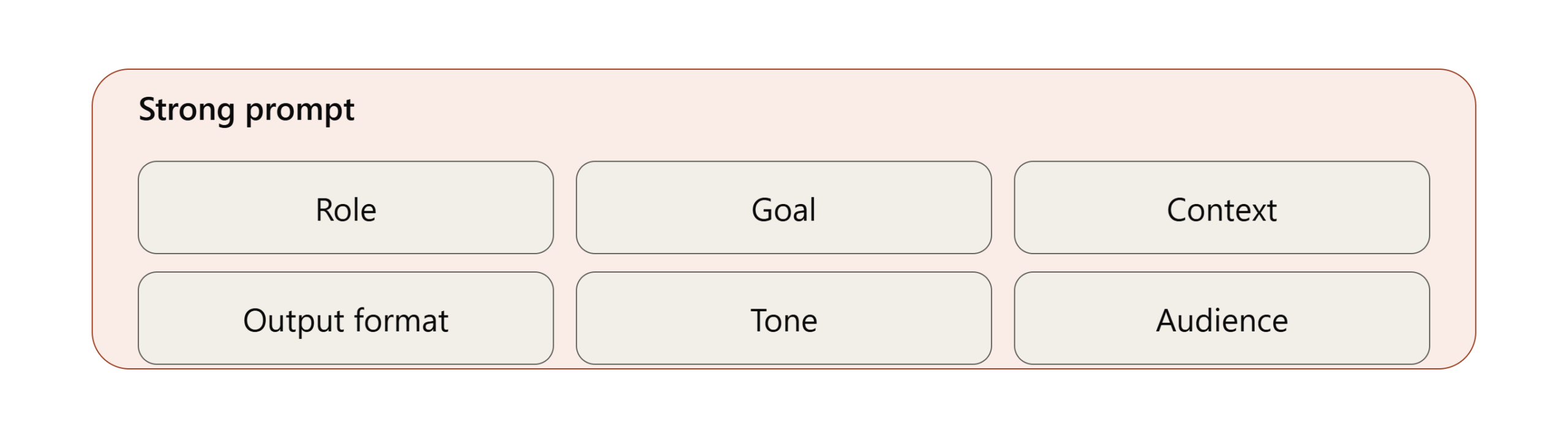
A well structured prompt consistently produces better results than a vague one, and this is worth practicing early rather than later in this ChatGPT tutorial for beginners. A strong prompt generally includes a role for the AI to take on, a clear goal, relevant context, the desired output format, a tone, and an intended audience. Mastering this single skill is arguably the most valuable takeaway from any ChatGPT tutorial for beginners, since it transfers directly to nearly every other feature covered later.
A weak prompt might simply say “Write article.” A stronger version, the kind this ChatGPT tutorial for beginners encourages, looks like this: “Act as an SEO expert. Write a 2,000 word beginner friendly article about AI agents with headings, FAQs, tables, and examples.” The second version removes nearly all the guesswork, since it tells ChatGPT exactly who to sound like, what to produce, how long it should be, and what structure to follow.
OpenAI’s own prompt engineering guidance recommends treating this as an iterative process, a habit this ChatGPT tutorial for beginners repeats throughout: write an initial prompt, review the response, then refine the wording based on what came back rather than expecting the first attempt to be perfect. This same iterative approach applies directly to Claude as well, and this How to Sell Claude AI Prompts Online: A Complete Passive Income Guide covers the technique in more depth for anyone working across multiple AI tools.
ChatGPT Features
Beyond basic conversation, ChatGPT includes a wide range of features worth knowing about. Text generation covers everything from emails to long-form articles. Image generation creates original visuals from a written description, and image editing allows refining an existing image with a follow-up instruction rather than starting over.
Voice conversations let a person speak naturally instead of typing, useful for brainstorming while doing something else. Web browsing, one of the more powerful features covered in this ChatGPT tutorial for beginners, allows ChatGPT to pull in current information from the internet, and Deep Research extends this into a fuller, multi-source report automatically.
Canvas provides a dedicated writing and coding workspace with inline editing, separate from the regular chat flow. Projects and Memory, covered earlier, keep related work organized and let ChatGPT retain useful context over time. Custom GPTs allow building a specialized version of ChatGPT configured for a specific repeated task. Study Mode, covered in more detail in the student section below, walks through material step by step rather than just providing an answer.
File uploads support PDF analysis, spreadsheet analysis, and general document review, a combination this ChatGPT tutorial recommends exploring early, while the coding and data analysis features allow ChatGPT to write, run, and explain code directly inside a conversation.
Uploading Files to ChatGPT
Uploading a file, a step this ChatGPT tutorial for beginners recommends trying early, expands what ChatGPT can help with considerably. PDFs can be summarized, questioned, or have specific data extracted from them. Excel and CSV files can be analyzed for trends, cleaned up, or turned into a chart with a written description of what is needed. Word documents can be edited, restructured, or reviewed for clarity and tone. PowerPoint files, a use case this ChatGPT tutorial for beginners often gets asked about, can be summarized slide by slide or used as the basis for a new draft. Images can be described, analyzed, or used as a reference for generating something new.
A practical example: uploading a messy sales spreadsheet and asking “Summarize the top three trends in this data and suggest one chart that would show them clearly” turns a file that might otherwise take an hour to review manually into a two minute conversation.
ChatGPT Image Generation
Image generation inside ChatGPT covers a wide range of practical uses beyond just creative art. Logos, thumbnails, illustrations, product mockups, social media graphics, and blog header images can all be generated directly from a written description, then refined with follow up instructions.
A useful prompt structure, one this ChatGPT tutorial for beginners recommends reusing, includes the subject, the style, the color palette, and the intended use. For example: “Create a minimalist blog header image showing a laptop and a coffee cup, flat illustration style, blue and white color scheme, for a productivity article.” Refining from there, a habit this ChatGPT tutorial for beginners recommends building early, such as asking to adjust the angle or simplify the background, usually produces a better result faster than trying to get everything right in a single prompt.
ChatGPT for Students
Students use ChatGPT for homework help, research summaries, flashcard creation, language learning practice, essay brainstorming, and exam preparation. Rather than providing a finished essay to copy, the more effective approach is asking ChatGPT to explain a concept, quiz on key terms, or provide feedback on a draft already written, which builds actual understanding instead of bypassing it.
Study Mode, one of the features this ChatGPT tutorial for beginners recommends for coursework, is designed specifically to walk through a problem step by step rather than jumping straight to the final answer.
AI in Education: How AI Tutors and Personalized Learning Are Changing Classrooms
ChatGPT for Developers
Developers use ChatGPT across Python, Java, JavaScript, and SQL for writing new code, debugging existing code, explaining unfamiliar snippets, and drafting API integration examples. Pasting an error message along with the relevant code and asking “What is causing this error and how do I fix it” is often faster than searching through documentation or forums manually.
ChatGPT is also useful, as this ChatGPT tutorial for beginners has found, for generating boilerplate code, writing unit tests, and translating a function from one programming language into another, though any generated code should still be reviewed and tested before being used in production.
ChatGPT for Testers
QA professionals have a particularly strong use case for ChatGPT, since much of testing work involves structured, repeatable writing tasks that AI handles well. Writing test cases from a feature description, generating realistic test scenarios covering edge cases a tester might not think of immediately, and drafting API test requests are all tasks ChatGPT can accelerate significantly.
SQL query generation for validating test data, drafting clear and consistent bug reports from a rough description of what went wrong, and generating synthetic test data that mimics real world patterns are additional common uses. ChatGPT can also produce starter Selenium code for browser automation, suggest automation scripting approaches for a described workflow, and brainstorm performance testing scenarios worth covering before a release. None of this replaces a tester’s own judgment, but it removes a significant amount of the repetitive writing that used to eat into actual testing time.
Explore AI for testers
AI Testing Pyramid Explained: The Future of Intelligent Test Automation
ChatGPT for Content Creators
Content creators use ChatGPT for blog writing, YouTube scripts, Instagram captions, and LinkedIn posts, often working faster by generating a first draft with ChatGPT and then editing it into their own voice rather than starting from a blank page. SEO related tasks, a category this ChatGPT tutorial for beginners covers only briefly, including keyword research starting points and content calendar planning, are another common use, especially for solo creators managing an entire publishing schedule without a larger team behind them.
How to Create and Sell Digital Products With AI: Complete Guide
ChatGPT for Business
In a business setting, ChatGPT supports marketing copy, customer support response drafting, sales email templates, meeting notes summarization, and report writing. Feeding in a rough set of meeting notes and asking for a clean summary with action items, a workflow this ChatGPT tutorial for beginners uses as its go to business example, saves real time compared to writing that summary manually after every call. Documentation, including internal process guides and onboarding materials, is another area where a first draft from ChatGPT significantly speeds up the writing process, even when a human still reviews and finalizes the result.
Faceless YouTube Automation with Claude AI: Complete Money-Making Workflow Guide
Common ChatGPT Mistakes
A few habits, covered in this section of the ChatGPT tutorial for beginners, consistently lead to poor results or real problems. Copying an answer without checking it is the most common mistake, since ChatGPT can produce confident-sounding but incorrect information, a pattern often called hallucination. Using vague prompts without enough context, a mistake this ChatGPT tutorial for beginners sees most often, leads to generic responses that need heavy editing afterward. Sharing sensitive information, such as private company data or personal identifying details, inside a conversation is a real risk worth avoiding entirely, and these concerns connect directly to the broader themes covered in this guide to the challenges and risks of AI.
Ignoring the possibility of hallucinations, a risk this ChatGPT tutorial for beginners flags more than once, particularly for factual claims, statistics, or citations, can lead to embarrassing or costly errors if that content is published or acted on without verification. Not providing enough context about the intended audience, format, or purpose is another frequent issue that produces a technically correct but practically unusable response.
ChatGPT Best Practices
Building good habits early makes a noticeable difference over time. Using detailed prompts rather than short, vague ones consistently produces better first drafts. Providing an example of the desired output, even a rough one, helps ChatGPT match the intended format far more accurately than a description alone.
Breaking a complex task into smaller steps, a technique this ChatGPT tutorial for beginners recommends over asking for everything at once, tends to produce more accurate and manageable results, particularly for longer writing or coding tasks. Verifying facts independently, especially for anything published publicly or used in a professional context, remains essential regardless of how confident a response sounds, a reminder this ChatGPT tutorial for beginners repeats deliberately. Refining prompts iteratively, treating the first response as a draft rather than a final answer, and saving genuinely useful conversations for future reference round out the habits that separate an occasional user from someone who gets consistent value from ChatGPT.
12 Powerful ChatGPT Hacks That Will Help You Become a PRO
ChatGPT Keyboard Shortcuts
Learning a handful of shortcuts removes the friction of reaching for the mouse for actions used constantly throughout a session.
| Action | Windows | Mac |
|---|---|---|
| New chat | Ctrl + Shift + O | Cmd + Shift + O |
| Focus chat input | Ctrl + Shift + L (varies by update) | Cmd + Shift + L |
| Search conversations | Ctrl + K | Cmd + K |
| Toggle sidebar | Ctrl + Shift + S | Cmd + Shift + S |
| Copy last response | Ctrl + Shift + C | Cmd + Shift + C |
| Set custom instructions | Ctrl + Shift + I | Cmd + Shift + I |
Shortcut availability can shift with interface updates, a detail this ChatGPT tutorial for beginners suggests checking directly in Settings if any of these do not respond as expected on a specific account.
Final Thoughts
This ChatGPT tutorial for beginners has covered the account setup, the interface, the plans, prompt writing, and the specific ways students, developers, testers, content creators, and business users get value out of the tool every day. The fastest way to actually get comfortable is simply to start writing prompts, review what comes back, and refine from there rather than trying to memorize every feature before beginning.
As familiarity grows, exploring more advanced features like custom GPTs, Deep Research, and Canvas becomes a natural next step. The habits covered here, writing specific prompts, verifying anything factual, and treating a first response as a draft rather than a final answer- apply just as well months from now as they do today. For anyone comparing ChatGPT against other AI assistants, this Claude tutorial for beginners covers the same fundamentals from Anthropic’s side, and this overview of AI tools and news rounds up several other platforms worth knowing about.
AI Test Case Generation Guide for QA Engineers Using ChatGPT and Claude
What Are AI Tokens: How Copilot, ChatGPT, Gemini, and Claude Process Every Prompt
AI Tool Comparison: ChatGPT vs Claude vs Gemini vs Copilot – Pros, Cons & Best Uses
12 Best AI Chatbots in 2026: ChatGPT, Claude, Gemini & More Compared
Explore more Blogs AI Learning Hub. Subscribe to AI Pathway Lab for more AI guides and tutorials
Frequently Asked Questions
Is ChatGPT free?
Yes, ChatGPT has a free plan that includes access to the base model with usage limits. This is usually the first question anyone reading a ChatGPT tutorial for beginners wants answered, and paid plans remove most of those limits while unlocking additional features like custom GPTs and higher image generation limits.
Can ChatGPT browse the web?
Yes, ChatGPT can browse the web to pull in current information when a query benefits from up to date sources, a capability covered earlier in this ChatGPT tutorial for beginners. This works alongside Deep Research, which goes further by compiling information from multiple sources into a fuller report.
Can ChatGPT generate images?
Yes, ChatGPT can generate original images from a written description and refine them through follow up instructions, a feature this ChatGPT tutorial for beginners covered in detail earlier. Image generation is available on paid plans with significantly higher limits than the free tier.
Is ChatGPT safe?
ChatGPT is generally safe for everyday use, though sensitive personal or company information should never be shared in a conversation. It is also worth remembering that responses can occasionally be confidently wrong, so anything factual should be verified independently.
Can ChatGPT replace Google?
A common question in any ChatGPT tutorial for beginners, ChatGPT is useful for explanations, drafts, and synthesis, but it does not fully replace a search engine, particularly for very current events or when a definitive, sourced answer is required. Many people now use both together depending on the type of question.
Which model should beginners use in this ChatGPT tutorial?
Beginners can start with whatever model is set as default on the Free or Plus plan, the approach this ChatGPT tutorial for beginners recommends, since it handles the vast majority of everyday writing, research, and coding questions well. Switching to a more advanced reasoning option only matters for particularly complex analysis or multi-step problems.
Can ChatGPT analyze PDFs?
Yes, ChatGPT can read an uploaded PDF and answer questions about it, summarize it, or extract specific information directly from the document, a workflow this ChatGPT tutorial for beginners covered earlier in more detail. This works well for reports, research papers, and other text heavy files
Can ChatGPT write code?
Yes, ChatGPT can write, explain, and debug code across many programming languages, including Python, JavaScript, SQL, and Java, as covered in the developer section of this ChatGPT tutorial for beginners. Generated code should always be reviewed and tested before being used in a production environment